Firewall rules
Firewall rules control how traffic flows between zones and networks. You can allow or block traffic, apply security policies and scanning, and prioritize traffic to enforce access control and protect your network.
You can create firewall rules for IPv4 and IPv6 networks. You can implement the following actions through firewall rules:
Access and logging
- Allow, drop, or reject traffic based on the matching criteria, which include source, destination, services, and users during the specified time period.
- Create linked (source) NAT rules for address translation.
- Log traffic that matches the rule criteria.
Policies and scanning
- Apply policies for web traffic, application control, and IPS.
- Implement web proxy filtering with decryption and scanning.
- Send content for Zero-day protection analysis.
- Enforce malware scanning for web, email, and FTP traffic.
- Enforce action on endpoint devices and servers with a Synchronized Security heartbeat, which sends information about their health status to Sophos Firewall.
Traffic prioritization
- Apply bandwidth controls.
- Prioritize traffic with DSCP marking.
You don’t require a firewall rule for system-generated traffic or to allow access to system services. To specify access to system services from certain zones, go to Administration > Device access.
- To add a firewall rule manually, select Add firewall rule and then select New firewall rule.
- To create destination NAT rules along with firewall rules automatically, select Add firewall rule and then select Server access assistant (DNAT).
Server access assistant (DNAT)
Create DNAT rules to translate incoming traffic to servers, such as web, mail, SSH, or other servers, and access remote desktops. The assistant also creates a reflexive SNAT rule (for outbound traffic from the servers), a loopback rule (for internal users accessing the servers), and a firewall rule (to allow inbound traffic to the servers) automatically.
Rules and rule groups
You can create firewall rules and add them to rule groups.
Sophos Firewall evaluates firewall rules, not rule groups, to match criteria with traffic. It uses the matching criteria of rule groups only to group firewall rules.
Default rules
When you install a new firewall, the following default rules exist:
- A firewall rule that allows LAN to WAN traffic.
-
An email MTA firewall rule. It's automatically created along with a linked NAT rule when you turn on MTA mode. MTA mode is turned on by default.
Note
Review rule positions after a firewall rule is created automatically or manually to make sure the rule matches the correct traffic criteria.
Automatically created firewall rules, such as those for email MTA, IPsec connections, and hotspots, are placed at the top of the firewall rule list and are evaluated first. Later, if you manually create a firewall rule with Rule position set to Top or another automatically created rule, these are placed at the top of the rule table, changing rule positions. The policies and actions of the rule at the top will apply, which may lead to unplanned outcomes, such as failure in mail delivery or tunnels not being established, when matching criteria for the new and existing rules overlap.
-
A Drop all firewall rule. This rule drops traffic that doesn’t match the criteria of any firewall rule. It's positioned at the bottom of the rule table and has a firewall rule ID of
#0. You can’t edit, delete, or move this rule. It doesn’t show the usage count. Filters don't apply to it.
Rule groups
You can’t create rule groups without a firewall rule. So, create a rule group when you create a rule from the rule template or with an existing rule from the rule table.
You can add a firewall rule to a rule group or detach it from the group. Empty rule groups can't exist. When you delete the last rule from a rule group, the rule group is deleted.
When you create a firewall rule, the Rule group is set to None by default.
Rule table actions
- To see IPv4 or IPv6 rules in the rule table, select IPv4 or IPv6.
-
To filter rules based on specific criteria, use search.
Click the search box to see suggested search filters. Select one of the criteria shown, and Sophos Firewall provides additional suggestions to help you complete your search. Press
Enterto filter the rule table based on the selected criteria.If you want to search by rule name, type it in the search box and press
Enter. -
To remove a filter, click x
 next to the filter you want to remove.
 -
To select the columns to show, click the Show/Hide columns button
 .
.You can select the columns you want to show, reorder them by clicking and dragging, and freeze up to three columns so they're always shown first.
-
To turn on or turn off rules, use the radio button in the Status column.
You can also select the rules and click Turn on or Turn off. If you select both turned-on and turned-off rules, you can't perform these actions.
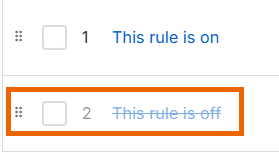
Rules that are turned off have a strikethrough name and appear faded compared to rules that are turned on.
-
To delete rules, select them and click Delete.
- To view the rule details in the rule table, hover over the icons in the Features column.
-
The Hash (#) column shows the rule position. To change the position of a rule or rule group, click and drag the Rule handle
 . Sophos Firewall evaluates rules from the top down until it finds a match. When it finds a match for the packet, it doesn't evaluate subsequent rules. So, position the more specific rules above the less specific rules.
You can change the position of a rule within the rule group by clicking and dragging it within the grouped rules. If the rule is adjacent to at least one other rule in the group, it stays in the group.
To move the rule outside the group, click and drag it at least one position away from the group. The rule is automatically removed from the group. If you move the rule between two rules in another group, it's automatically added to the new group.
Click View menu  to take the following actions for that rule:
- Click Edit to edit the rule's configuration.
-
Select Reset data transfer count to reset the count for the data transferred. This is useful when troubleshooting.
To see the data transferred using a rule, go to Reports > Dashboards. Select Traffic dashboard and scroll down to Allowed policies.
-
To move a rule to a different position in the table, enter the position number next to Move To and press
Enter.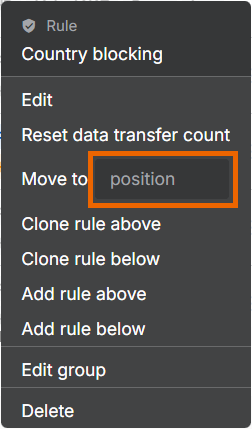
-
Click Clone rule above to create a copy of the rule and place it above the existing one.
- Click Clone rule below to create a copy of the rule and place it below the existing one.
- Click Add rule above to create a new rule and place it above the selected one.
- Click Add rule below to create a new rule and place it below the selected one.
- Click Edit group to add a rule to a rule group or edit a rule group.
- Click Delete to delete a rule.
Linked NAT rules
These are source NAT rules and are listed in the NAT rule table. You can identify them by the firewall rule ID and name.
Sophos Firewall applies firewall rules before it applies source NAT rules. If a NAT rule above the linked rule meets the matching criteria, Sophos Firewall applies that rule and doesn’t look further for the linked rule. However, linked NAT rules apply only to traffic that matches the firewall rule they are linked to.
You can unlink a linked NAT rule from the NAT rule table. Once you unlink the rule from the original firewall rule, you can edit the NAT rule. It will now be evaluated independent of the original firewall rule based on its criteria and not the original firewall rule criteria.
Rule status
Each firewall rule has a status associated with it. You can use the firewall rule's status to filter rules and see them in the Active firewall rules widget in the Control Center. The firewall rule statuses are as follows:
- Unused: Firewall rules whose criteria didn't match any traffic during the past 12 hours. Consider revising or deleting unused firewall rules.
- Disabled: Firewall rules that are configured, but turned off.
- Changed: A firewall rule remains in this status for 24 hours from the time you make changes to the rule.
- New: A firewall rule remains in this status for 24 hours from the time of its creation.
Rule table icons
The following table shows the icons you can see in the Firewall rules table and their meanings.
| Icons | Description |
|---|---|
 | User rule. Match known users is selected and Action is set to Accept. |
 | User rule. Match known users is selected and Action is set to Reject or Drop. |
 | Network rule. Match known users isn't selected and Action is set to Accept. |
 | Network rule. Match known users isn't selected and Action is set to Reject or Drop. |
 | Malware and content scanning for web, FTP, or email is turned off. |
 | Web proxy is turned off and DPI engine is used for all web filtering. |
 | Traffic isn't logged for this rule. |
 | Web policy is set to None. |
 | Application control policy is set to None. |
 | IPS policy is set to None. |
 | Traffic shaping policy is set to None. |
 | Security Heartbeat has no restrictions and Block clients with no heartbeat isn't selected. |
 | Malware and content scanning for web, FTP, or email is turned on. |
 | Web proxy is filtering traffic on ports 80 and 443. DPI engine is filtering all other ports. |
 | Traffic is being logged for this rule. |
 | An IPS policy is applied to this rule. |
 | A traffic shaping policy is applied to this rule. |
 | A web policy is applied to this rule and is set to Accept. |
 | An application control policy is applied to this rule and is set to Accept. |
 | Minimum Security Heartbeat status is set to Green. |
 | A web policy is applied to this rule and is set to Drop. |
 | An application control policy is applied to this rule and is set to Drop. |
 | Minimum Security Heartbeat status is set to Yellow. |
 | A web policy is applied to this rule and is set to Reject. |
 | An application control policy is applied to this rule and is set to Reject. |
 | No minimum Security Heartbeat restriction and Block clients with no heartbeat is selected. |
Factory reset behavior
Resetting the firewall to factory settings removes all firewall rules. When the firewall is reset, only the "Auto added firewall policy for MTA" rule is added.