Web admin console
Manage your Sophos Firewall device using the web admin console.
Sophos Firewall OS (SFOS) uses a graphical user interface (web admin console) to configure and manage Sophos Firewall.
We support the most commonly used browsers, such as Chrome, Edge, Firefox, and Safari. We recommend that you use the latest browser version.
Web admin console settings
You can access the web admin console from a web browser using HTTPS. The default settings are as follows:
- Services: HTTPS
- Interface: LAN
- Admin console HTTPS port: 4444
To access the web admin console from a different zone, allow access from the zone on Administration > Device access.
Warning
We don't recommend enabling the web admin console on external-facing (WAN) interfaces. This could allow attackers to easily identify the firewall vendor and type, and launch a targeted attack.
To update the web admin console settings, go to Administration > Admin settings.
To access the sign-in window, open a browser and type the internal IP address or the hostname of Sophos Firewall in the address bar, followed by the port number.
Example
security.sophos.com:4444
Enter your username and password.
Tip
When you sign in to Sophos Firewall for the first time, you use the default username and password.
Every time you sign in to the web admin console, you see the control center, which provides a snapshot of the status and health of the security system.
To prevent unauthorized users from accessing Sophos Firewall, sign out after you finish working.
To sign out of Sophos Firewall, click your username at the upper right corner of any web admin console page and select Logout.
Web admin console language
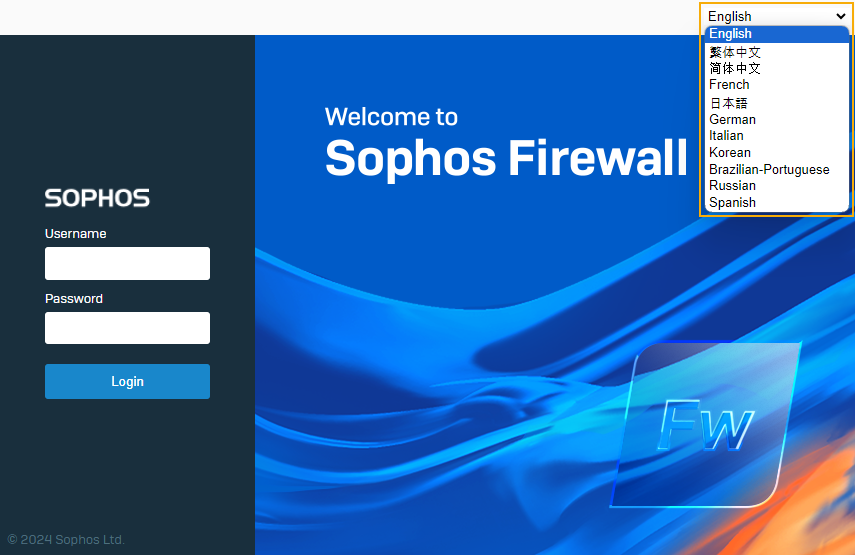
The web admin console language is used to show the UI elements, such as menus, buttons, error messages, tooltips, and other on-screen text. The firewall automatically detects and uses the browser's preferred language in SFOS 20.0 MR1 and later versions. If it doesn't find a match on its list, it defaults to English. The language preference is stored in the browser cache.
To change the console language, do as follows:
-
On the sign-in page, click the language drop-down.
-
Select a language.
-
Sign in to the web admin console.
The web admin console uses the selected language.
Global menu search
You can use the search box at the top of the left menu to find items within the left menu, tabs, and section headings. You can see the list of search results along with the paths.
Links at the top
The following information is available at the top of every web page:
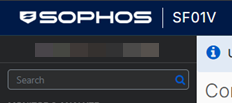
- Sophos logo: Click the Sophos logo to go to the Control center.
- The firewall's model.
- The firewall's serial number.
- Logs and policy test: Opens the log viewer in a new window. To access the policy test, click the Policy test tab.
-
Give feedback icon
 : Opens a window where you can give feedback.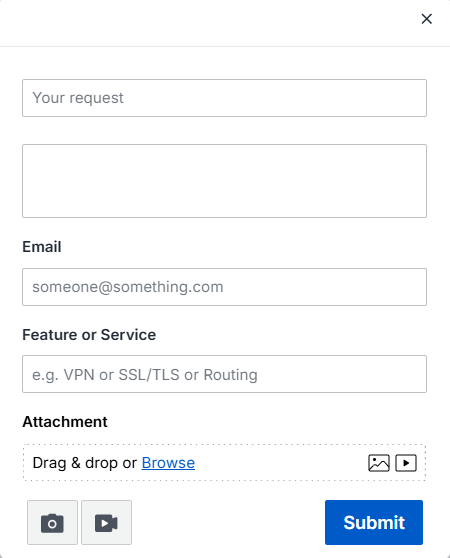
-
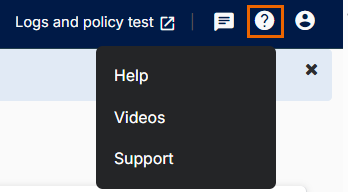
Click the Question mark icon
 to see the following options:
- Help: Opens the context-sensitive help page.
- Videos: Opens the Techvids library where you can find videos to help you configure the firewall.
- Support: Opens the Sophos support page. You can open a support case from this page.
-
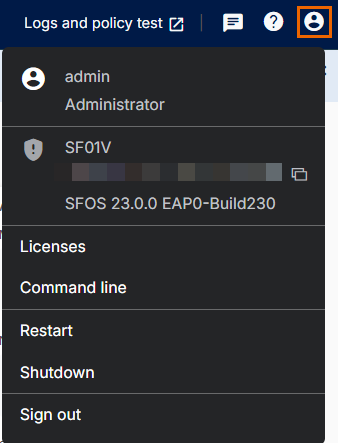
Click the Account icon
 to see the following options:
- The username you've used to sign in, and your role. For example, "admin" and "Administrator".
- The firewall model, serial number, hostname, version, and build.
- Licenses: Opens the Administration page on the Licensing tab.
- Command line: Opens the command line interface (CLI) console.
- Restart: Restarts the firewall.
- Shutdown: Shuts the firewall down.
- Sign out: Signs you out of the web admin console.
HA devices
For HA devices, the HA icon shows the status of the HA cluster.
Click the HA icon  to see the following information about the primary and auxiliary devices:
- Current node statuses
- Node names
- Serial numbers