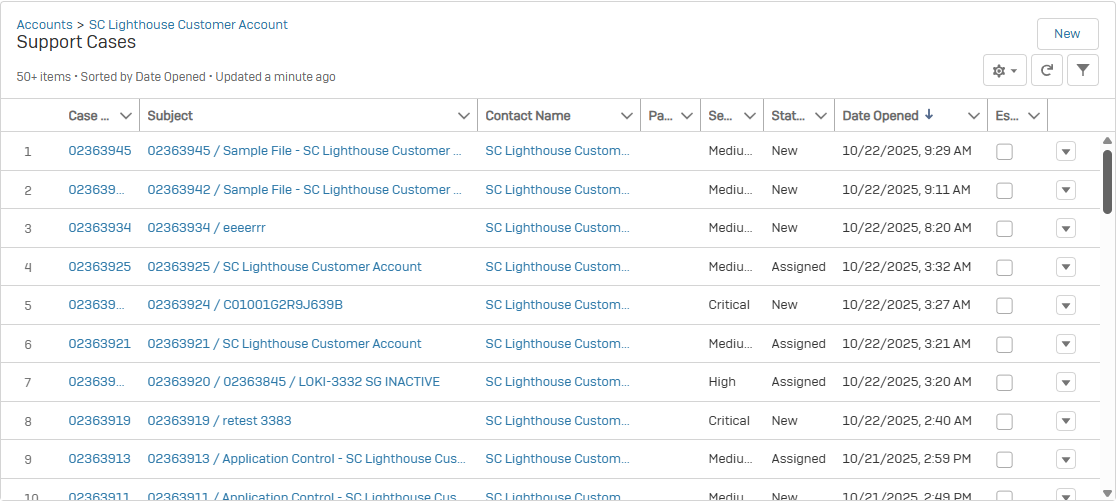
Follow cases
Customers and Partners can follow cases owned by their account, whether they created the case or it was created by another user. Partners can also follow an account for which they have permission from the Customer to manage cases.
Follow an account
When following an account, any case related to that account, notifications will be received when the actions below occur:
- A new case is created
- Email update received
- Case "Closed"
-
Case Comment added
-
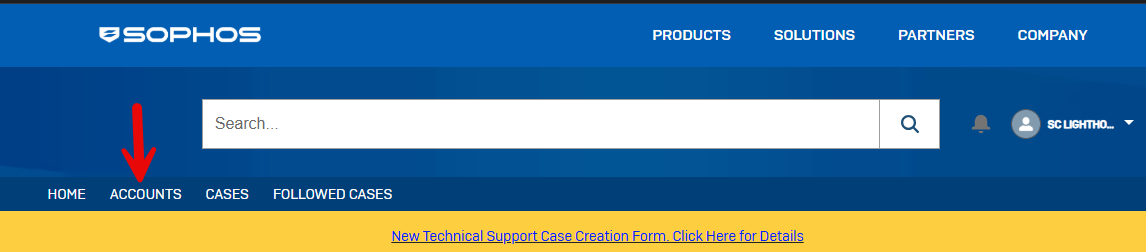
Click the Accounts tab in the menu selection
-
Select the account you wish to follow

-
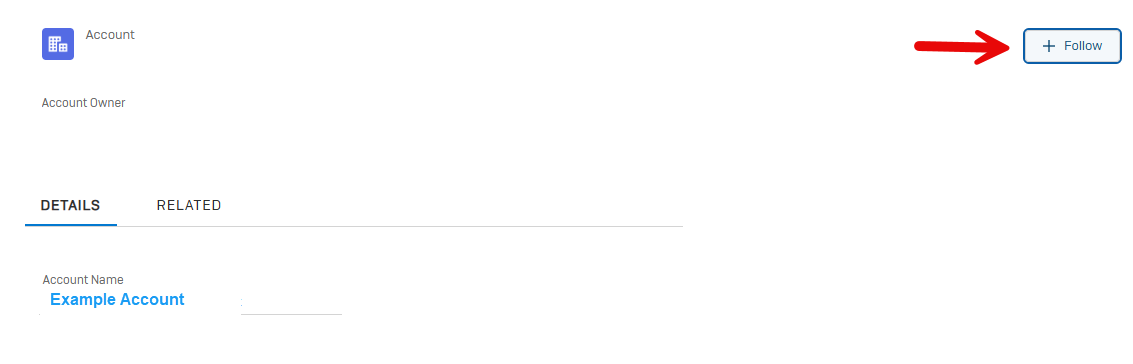
Click on the Follow button
Follow a case
When following a case, notifications will be received when the actions below occur:
- Email update received
- Case "Closed"
-
Case Comment added
-
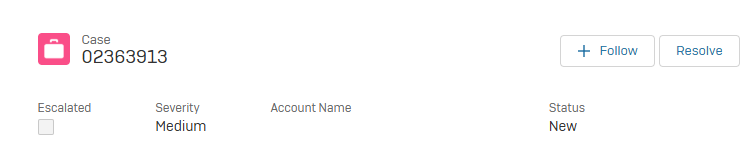
Open the case you wish to follow
-
Click the Follow button located to the left of the Resolve button
Once you have selected your case to be followed you will receive notifications of any updates to the case via email and bell notification.
Email tracking
Users have the ability to check on emails that have been sent/received against a case.
To check emails sent/received, do as follow:
- Select the case you wish to check
-
Click on the Related tab
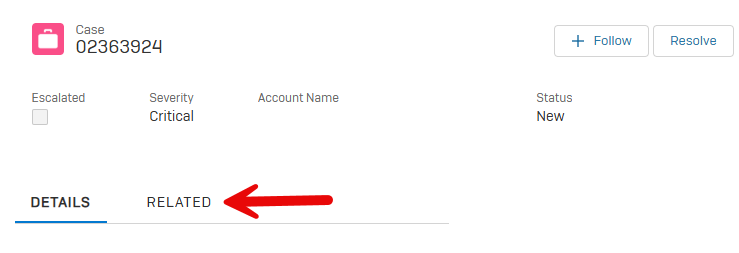
Sent/received emails, if any, will be visible in the Emails widget.
Locating closed cases
Users have the ability to view both open and closed cases in a single view.
To view both open and closed cases, do as follow:
-
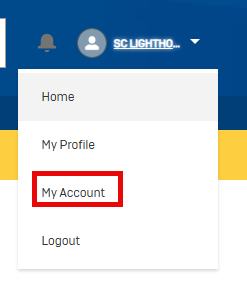
Click the down arrow to the right of your login name

-
Select My Account
-
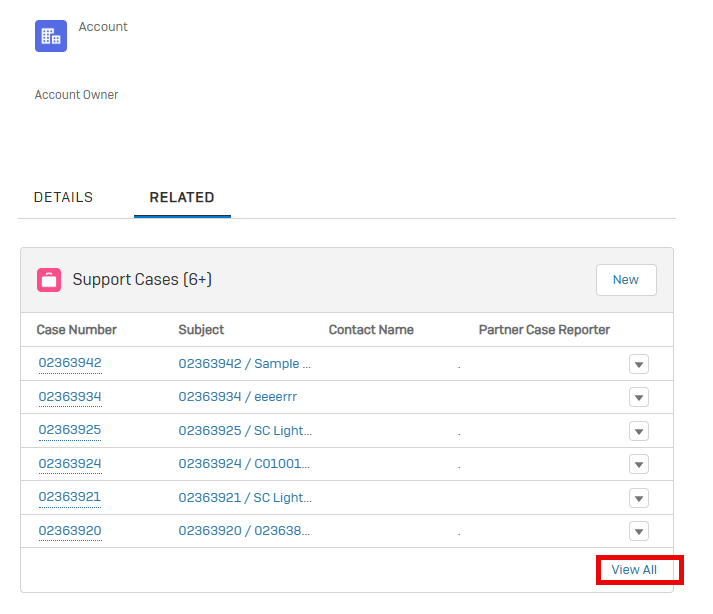
Click the Related tab
All cases, open or closed, are visible in this view. Click on View All to see additional available columns, including Status.