
Create an SQL account for SQL Server logon
Every user that should be able to use the SafeGuard Management Center must have a valid SQL User account when using Windows authentication to connect to the SafeGuard database.
The description of the individual configuration steps below is aimed at SQL administrators. It relates to Microsoft Windows Server 2008 R2 with Microsoft SQL Server Standard Edition.
As an SQL administrator, you need the right to create an SQL user account.
-
On the General page, in Login
name, do the following:
- Enter the name of the new user, for example SGN SQLSERVICE.
- Enter and confirm a password for the account.
- Clear Enforce password policy.
- In Default Database, if a script has not been used to create a SafeGuard Enterprise Database yet, select Master. Click OK.
Take a note of the authentication method and the credentials. You have to inform the SafeGuard Management Center security officer about them.

-
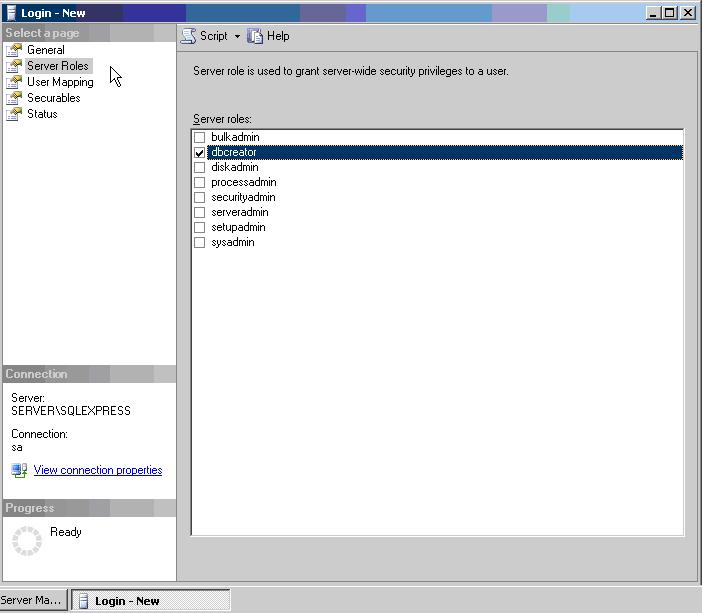
To create the database automatically during SafeGuard Management Center
first-time configuration, you have to change the access rights as follows:
In Login - New on the
General page, assign the access rights/roles by
clicking Server Roles on the left. Select
dbcreator. Once SafeGuard Enterprise has been
installed, the database role can be reset to
dbowner.
The SQL user account and the access rights are now set up for the SafeGuard Enterprise security officer.